ViewTurboWindows
Windows user guide
Get set up, explore the essentials, and make the most of ViewTurbo.
On this page
01 Choose Language and Region
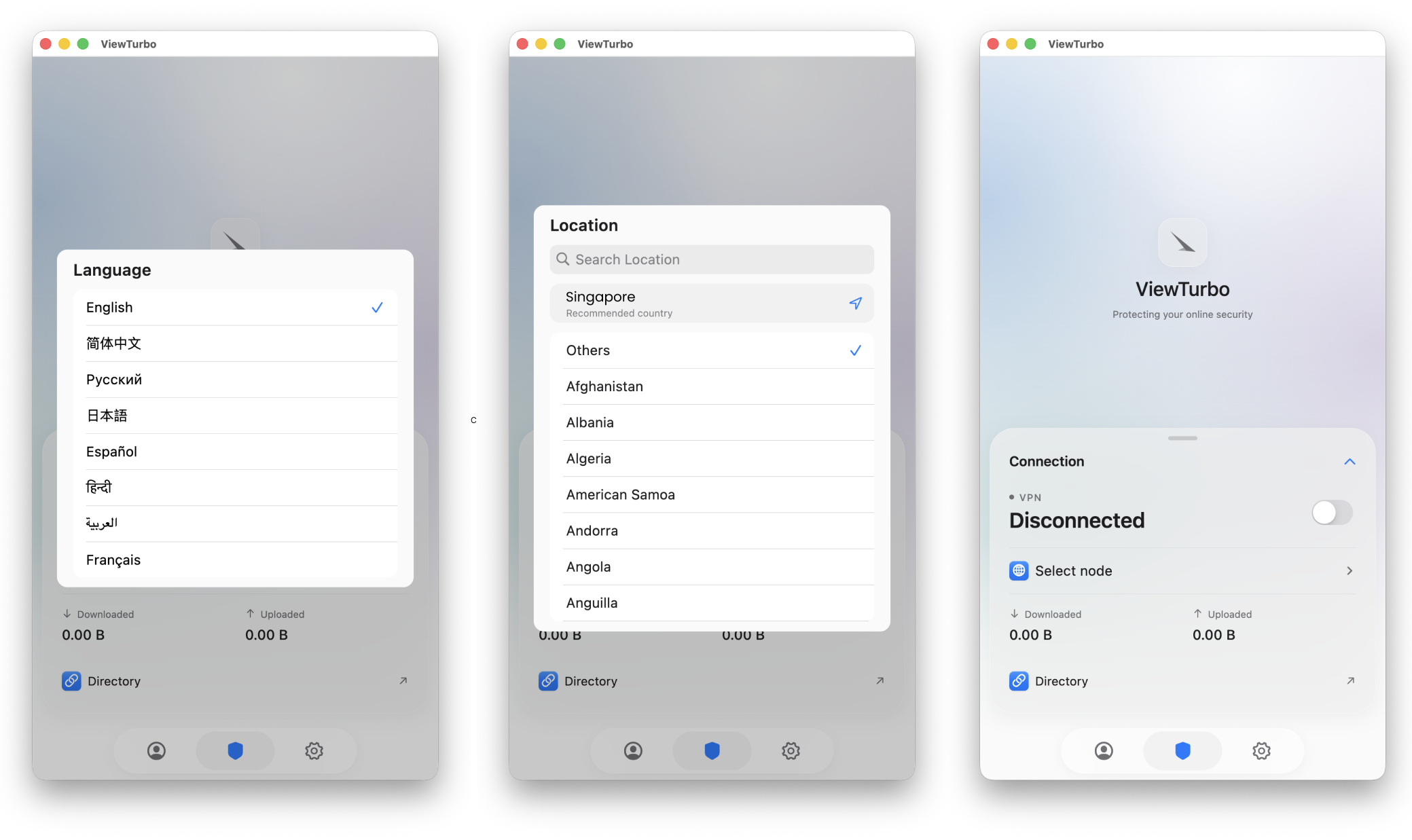
On first launch, you will be asked to choose a language. After that, you will be asked to choose your location.
If the selected region is different from your actual country or region, you may be unable to connect to our servers, or AI Proxy may become very slow.
If you move to a new country or region, that is fine. Click  to open the Settings page and change the language or region.
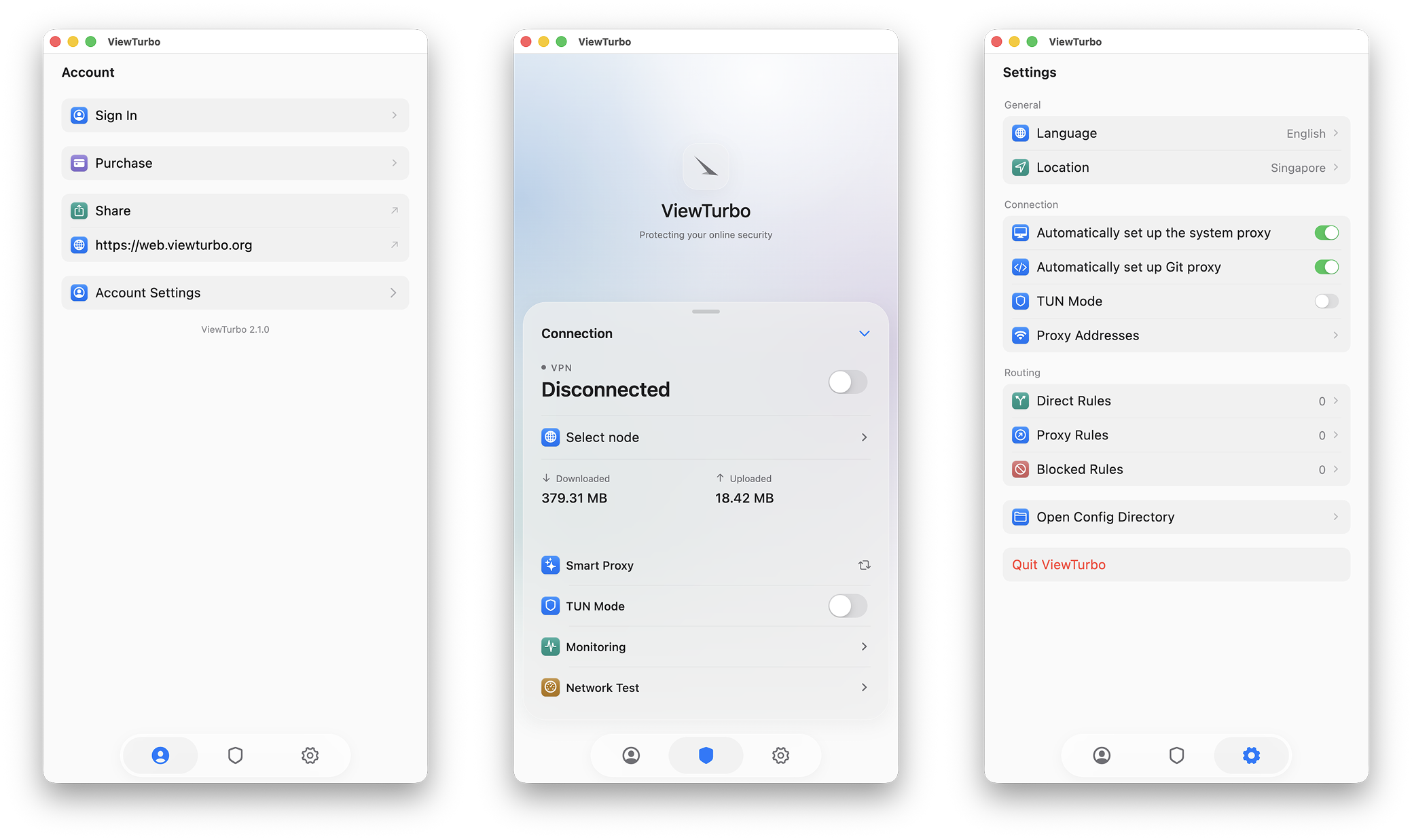
Basic Features

Use the navigation bar to switch between these three screens:
- Profile: View account information, membership expiration, remaining traffic, and more.
- Main screen: Select and connect to a node, switch proxy modes, monitor network requests, and test network speed.
- Settings: Change your region, interface language, traffic-routing rules, and other settings.
02 Log In or Register
2.1 Log In
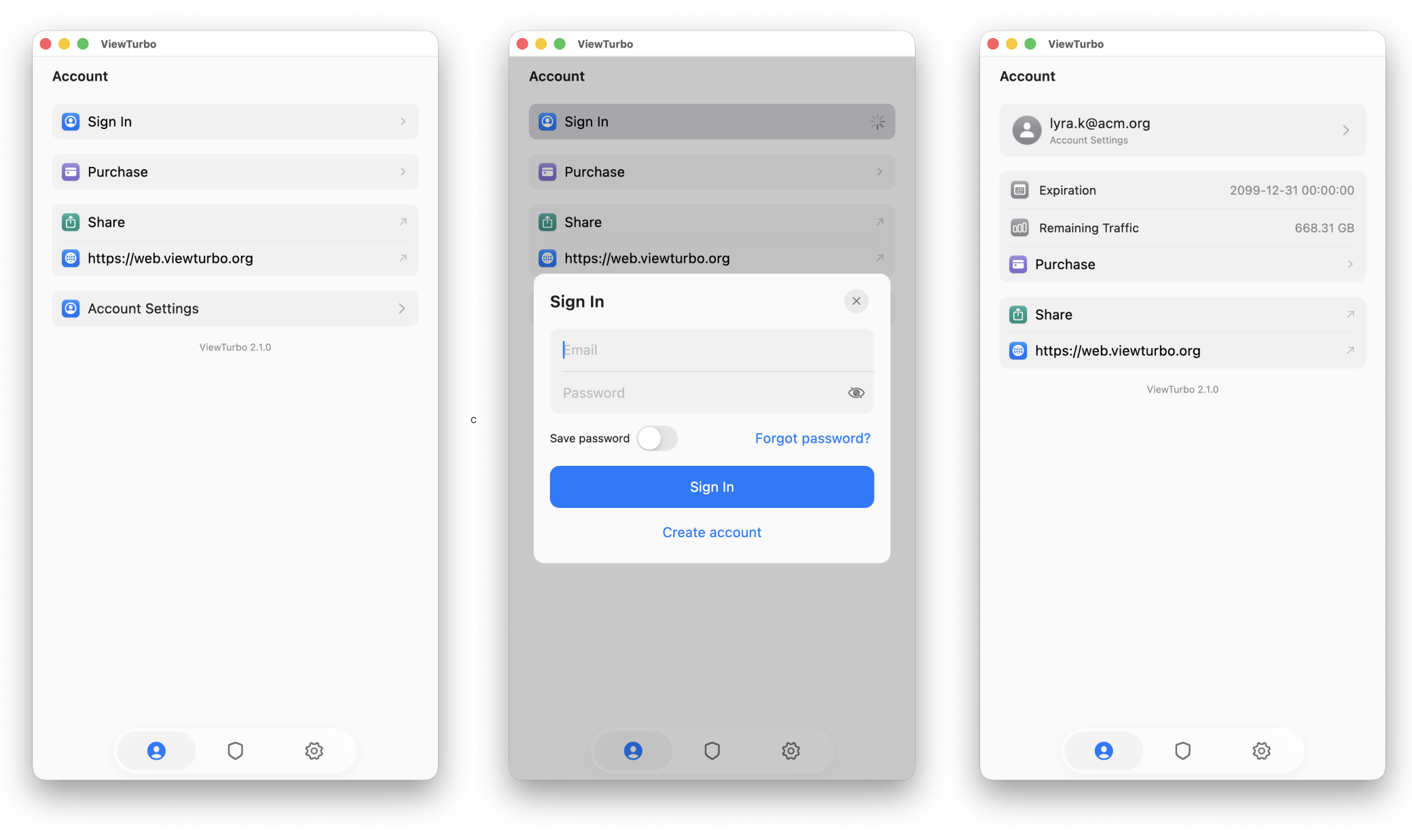
Open the Profile screen and click Sign in to log in or register. If you are not logged in, you can also click  on the main screen to open the login window.
After logging in, you can view your current account information in the navigation menu.
- Expiration: This indicates the account type. If it shows 2099/12/31, you are a traffic-based user. If it shows a specific expiration date, you are a duration-based user. You can view our plans on the Price page.
- Remaining Traffic: This shows your remaining traffic. If it shows 0.00B, acceleration cannot be used and you need to top up traffic. If you are a monthly member, it will show 9999GB.
- Sign Out: Sign out of the current account.
If your information has not updated after topping up, wait five minutes and try again. If the balance still has not appeared, submit a support ticket.
2.3 Register
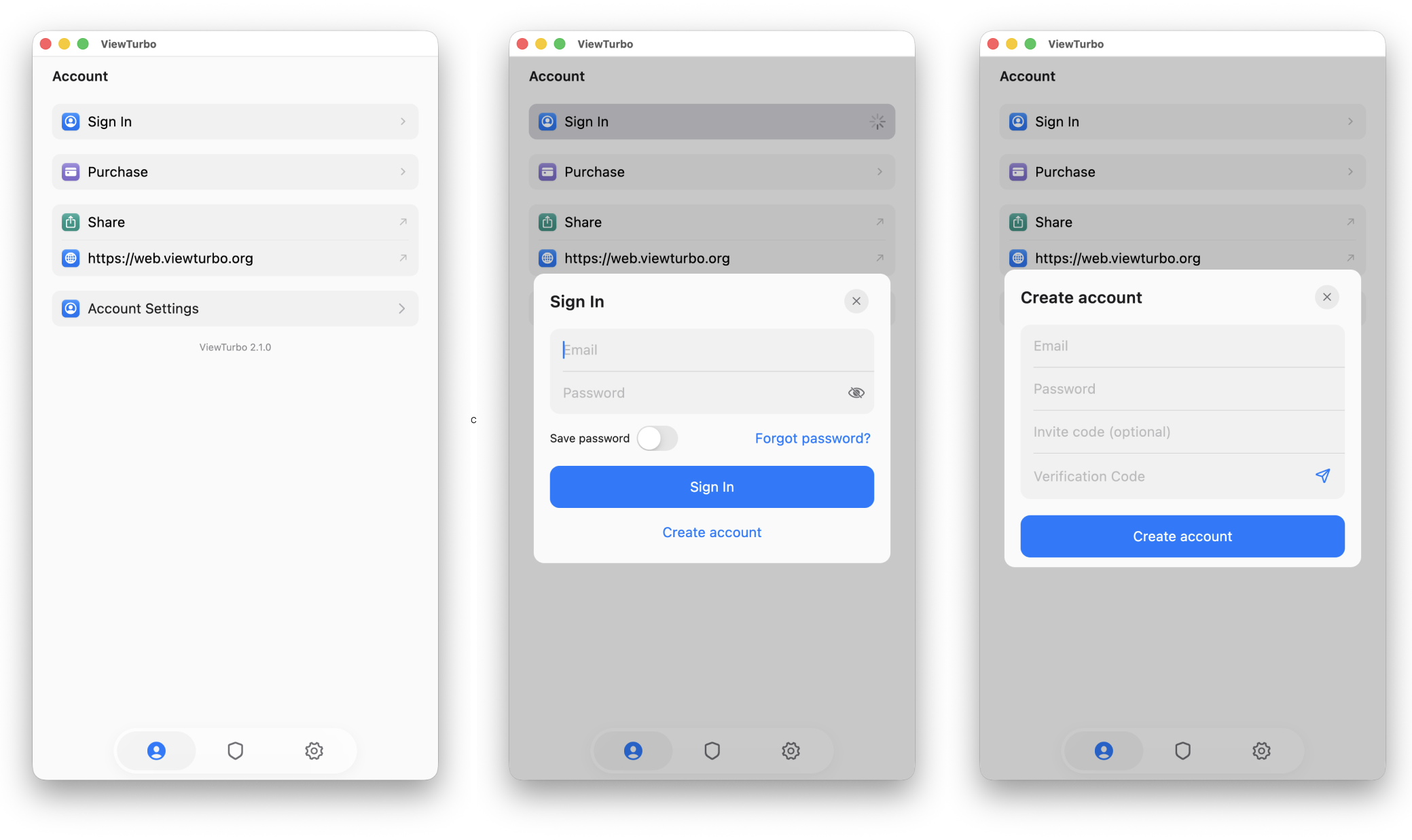
If you do not have an account, click Create account to register.
If your email username contains a dot, for example:
[email protected], you need to change it to:
[email protected]. We will still send the verification message to[email protected]. After registration succeeds, you also need to remove the dot when logging in.
If the email address you entered is [email protected], go to Gmail and check for the verification code from an address ending in [email protected].
We provide 200-500M of traffic for you to try. You can run a speed test. We also have a video that explains how to perform a speed test:
03 Select and Connect to a Node
3.1 Select a Node
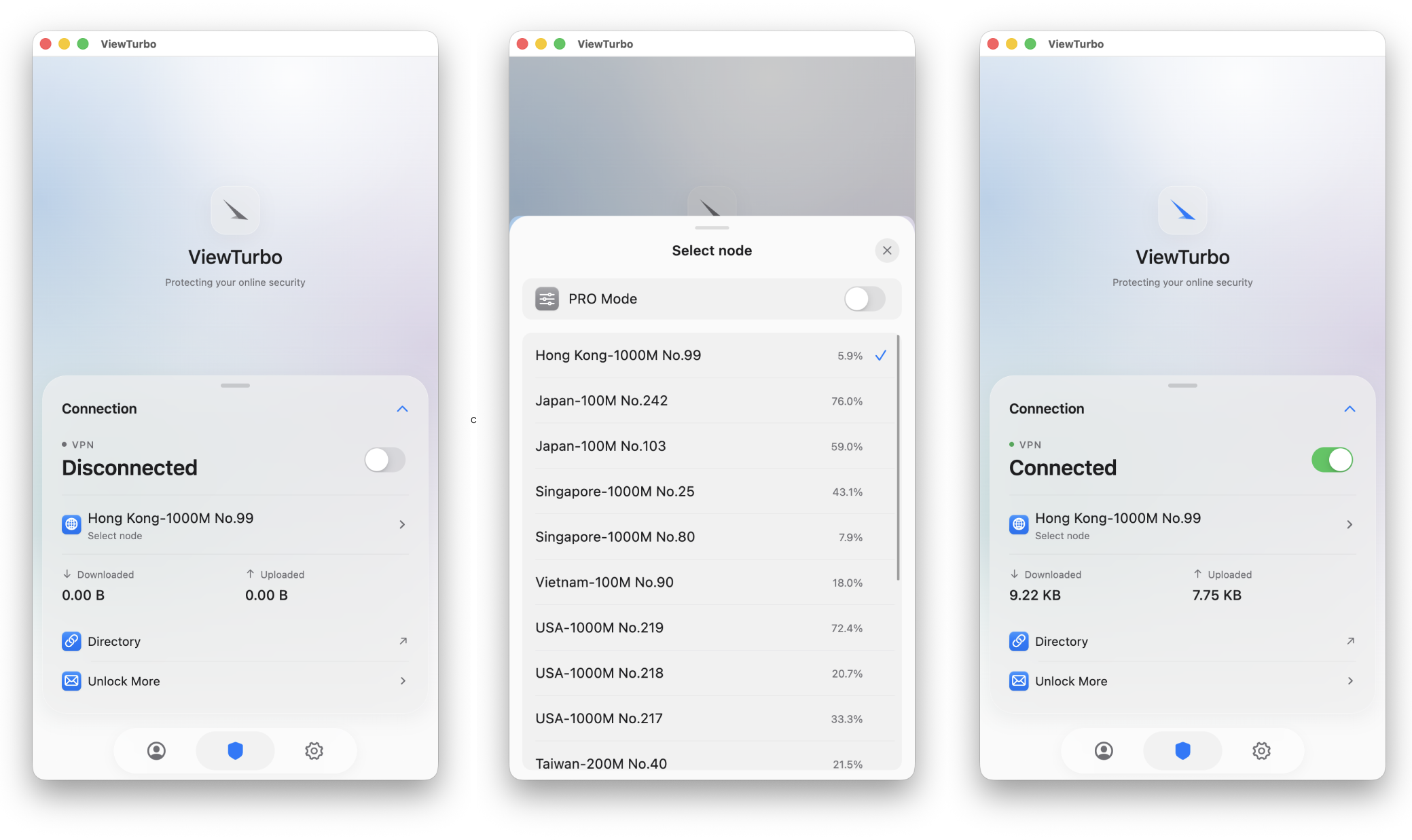
Before doing this, click  to log in. Otherwise, this feature cannot be used.
Click to open the node selection screen.
After choosing a node, use the  switch to the right of Connect to connect to it.
In each node card, the node name on the left follows a relatively standard naming format: [NodeName]-[Mbps] [No.number]. Here is how to understand the less obvious parts:
- 5000M: 5000M means 5000Mbps, or 5Gbps, of bandwidth. 5000M (5Gbps) = 5000 megabits per second, which means the network supports a theoretical download speed of up to 625MB/s (5Gbps ÷ 8 = 625MB/s).
- The % on the right is
load, which indicates the network load on the server.
3.2 Features After Connecting
Click  to show all features on the main screen.
| Feature | Description |
|---|---|
| Select Node | Open the node list and choose the proxy node you want to use. After selecting it, click the connection control on the main screen to start acceleration. |
 Switch Mode Switch Mode | Switch between AI Proxy and Full Proxy. AI Proxy routes traffic automatically and is recommended for everyday use. Full Proxy disables automatic routing and sends all network requests through the selected proxy node. |
 TUN Mode TUN Mode | Uses a system-level virtual network adapter to capture and forward device traffic, including both TCP and UDP, for more complete proxy coverage. |
 Network Monitoring Network Monitoring | View network requests generated while connected and their routing results, so you can see whether traffic is proxied, connected directly, or blocked. This feature is enabled with Professional Mode. |
 Network Speed Test Network Speed Test | Test the current node's network performance to compare connection speeds and choose a more suitable node. The test uses a small amount of traffic. |
Professional Mode uses a relay node to optimize the connection to your current proxy node and also enables Network Monitoring.
3.3 PRO Mode

After enabling 「PRO Mode」
After selecting a proxy node, you also need to choose a relay node. The relay node acts as an upstream forwarding layer between your local network and the target proxy node, helping optimize the path from your ISP egress network to the proxy node.
With relay nodes, ViewTurbo can reduce the impact of ISP-side routing degradation, link interference, or connection blocking to a certain extent. This helps connections avoid unstable network paths and improves stability, availability, and the overall experience during cross-network access.
04 Device Management
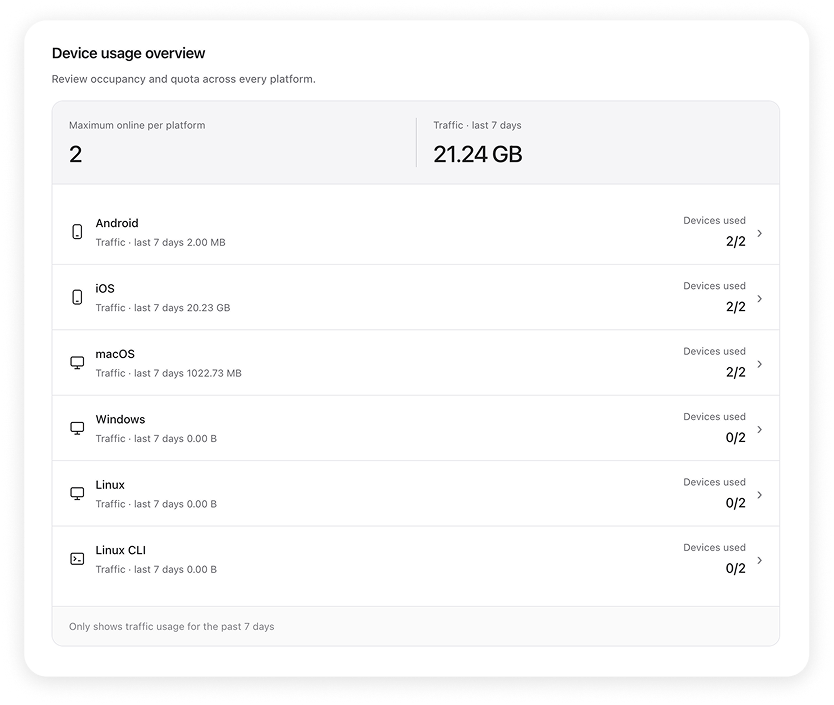
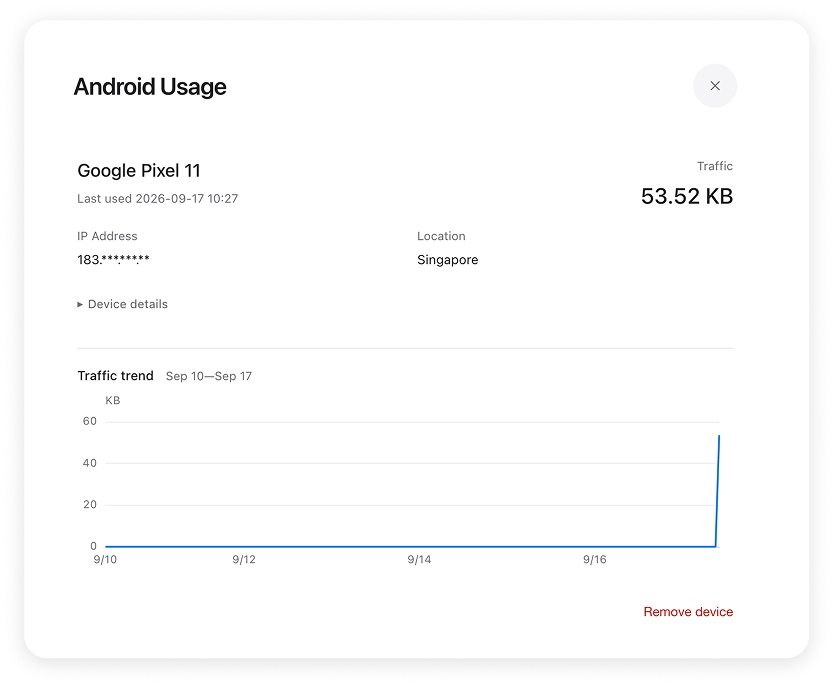
You can manage your devices at https://viewturbo.com/my.
Please note that our data usage statistics are not updated in real time and may be delayed by a few minutes or even several hours. These numbers are not perfectly precise and are only provided as a reference to help you understand your general data consumption.
Supports Ten Devices
Our proxy service allows up to ten devices to connect, including two Linux devices, two Windows devices, two Apple devices, two macOS devices, and two Android devices, providing flexible cross-platform compatibility.
Because multiple devices can be connected, effective device management is important. In the Devices tab on the main screen, you can view all previously connected devices. When you hover over a device, detailed information is shown.
Security
We implement device segmentation to isolate traffic between devices. This helps ensure that even if one device is compromised, an attacker cannot easily infiltrate other devices connected through ViewTurbo.
05 Other Features
5.1 Network Monitoring
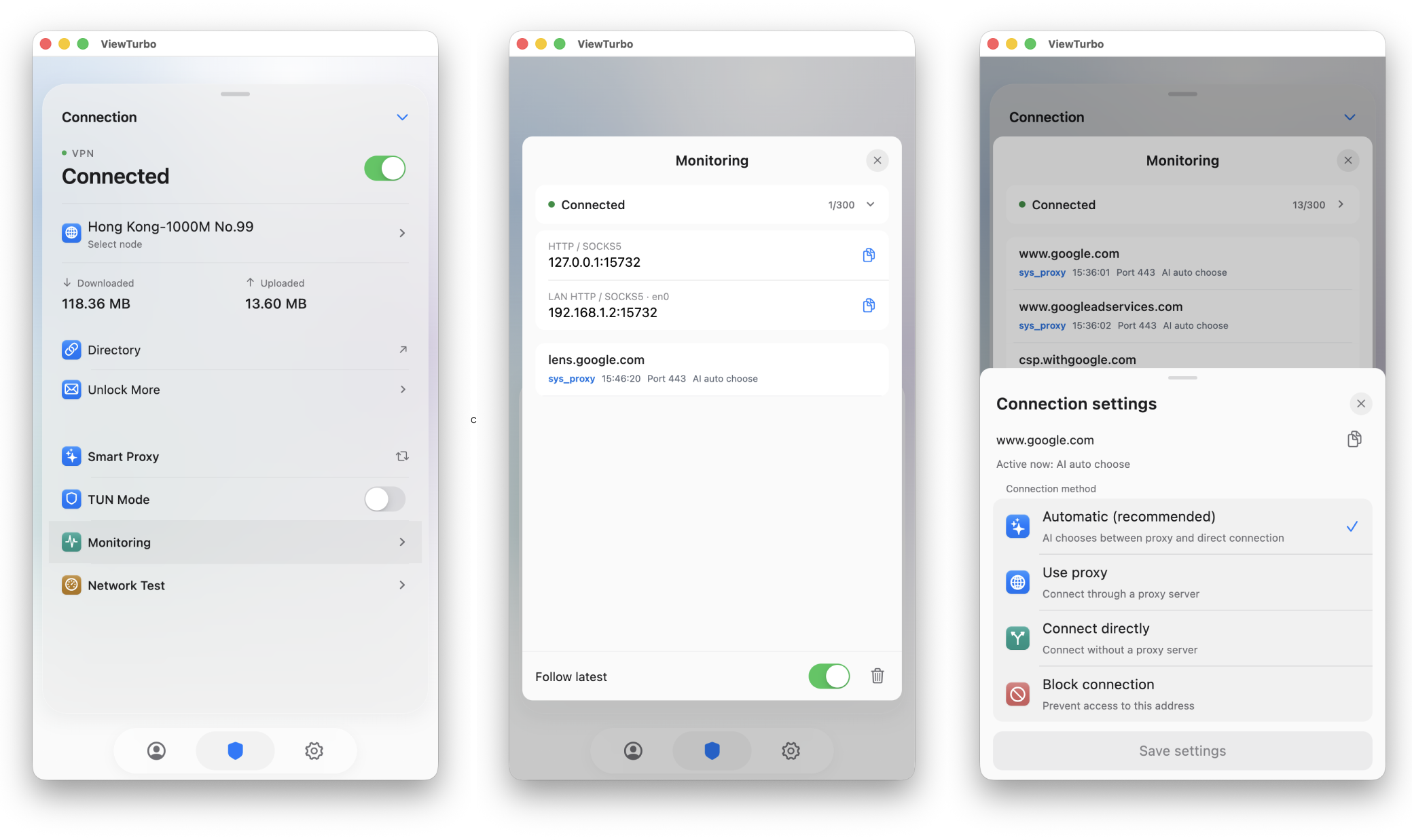
Click to show all features on the main screen.
To access this feature, click Network Monitoring on the  main screen. Network traffic will then appear whenever you open a page or the system generates traffic automatically.
What Are Auto, Proxy, Local, and Block?
- Auto: Decides whether to use a proxy based on the server response speed to the target address.
- Proxy: Accesses the target through a proxy.
- Local: Accesses the target directly through the local network without using a proxy.
- Block: Blocks that server from sending data to you.
Domain Scope Examples
- Main domain: For example,
youtube.com. - Subdomain: A name added before the main domain. For example,
www.youtube.com,m.youtube.com, andmusic.youtube.comare all subdomains ofyoutube.com. - All subdomains: All subdomains under the same main domain. For example,
*.youtube.comcan representwww.youtube.com,m.youtube.com,music.youtube.com, and more. When you choose main domain, it affects bothyoutube.comitself and these subdomains.
User Proxy Rules
Force this domain to be accessed through the proxy. Its priority is lower than block rules.
- full domain: When you enter a full domain, only that domain is affected. For example, entering
www.youtube.comonly affectswww.youtube.com, notyoutube.com,m.youtube.com, ormusic.youtube.com. - main domain: When you enter the main domain, the main domain itself and all of its subdomains are affected. For example, entering
youtube.comaffectsyoutube.com,www.youtube.com,m.youtube.com,music.youtube.com, and more.
User Local Rules
Force this domain to use direct/local network access. This has the lowest priority among custom rules.
- full domain: When you enter a full domain, only that domain is affected. For example, entering
www.youtube.comonly affectswww.youtube.com, notyoutube.com,m.youtube.com, ormusic.youtube.com. - main domain: When you enter the main domain, the main domain itself and all of its subdomains are affected. For example, entering
youtube.comaffectsyoutube.com,www.youtube.com,m.youtube.com,music.youtube.com, and more.
User Block Rules
Block this domain first. This has the highest priority among custom rules.
- full domain: When you enter a full domain, only that domain is affected. For example, entering
www.youtube.comonly affectswww.youtube.com, notyoutube.com,m.youtube.com, ormusic.youtube.com. - main domain: When you enter the main domain, the main domain itself and all of its subdomains are affected. For example, entering
youtube.comaffectsyoutube.com,www.youtube.com,m.youtube.com,music.youtube.com, and more.
These settings are saved in the files below. Click  in the bottom navigation bar to open the Settings page, then click
  Open Config Directory to view the configuration files.
A small hidden detail: some of our files support regular-expression domain matching.
- user_block.txt: Domains the user wants to block.
- user_local.txt: Domains the user wants to access locally.
- user_proxy.txt: Domains the user wants to access through the proxy.
- config.ini: Some ViewTurbo settings.
- Country.mmdb: A GeoIP database used to store geographic information for ViewTurbo automatic proxy routing.
- sys_local.txt and sys_proxy.txt: Stored in encrypted format and contain important system status and proxy server information.
- user_block.txt: Domains the user wants to block.
- user_local.txt: Domains the user wants to access locally.
- user_proxy.txt: Domains the user wants to access through the proxy.
5.2 Proxy Address
If you click Connected on the  Network Monitoring page, it will show the HTTP proxy address and Socks5 address:
127.0.0.1:15732
Hover briefly to show detailed proxy addresses such as HTTP and Socks5:
127.0.0.1:15732 // HTTP
127.0.0.1:15732 // Socks5
5.3 Settings Page
Settings
Use the Settings screen to adjust ViewTurbo's display language, connection behavior, and traffic-routing rules.
Basic Settings
| Feature | Description |
|---|---|
| Language | Change the ViewTurbo interface language. Menus and feature names will use the selected language after switching. |
 Location Location | Set your actual current country or region. ViewTurbo uses this information to optimize server connections and AI Proxy routing. Selecting an incorrect region may prevent connections or reduce speed. |
Connection Settings
| Feature | Description |
|---|---|
| Automatically Set Up the System Proxy | Automatically configure the system proxy after connecting to a node, so browsers and other apps that follow system proxy settings use ViewTurbo. We generally recommend leaving this enabled. |
 Automatically Set Up the Git Proxy Automatically Set Up the Git Proxy | Automatically configure Git so network operations such as clone, pull, and push use the current ViewTurbo connection. You can disable this if you do not use Git. |
| TUN Mode | Create a system-level virtual network adapter that captures device traffic, including apps that ignore system proxy settings and both TCP and UDP traffic, for more complete proxy coverage. |
 Proxy Addresses Proxy Addresses | View the current network IP and the HTTP and SOCKS5 proxy addresses provided by ViewTurbo. Apps that require manual proxy configuration and devices on the same LAN can use this information. |
The system proxy only affects apps that follow system proxy settings. TUN Mode captures traffic at the system network layer. If some apps still cannot connect after you enable the system proxy, try enabling TUN Mode.
Routing Rules
You can assign different handling methods to target addresses. The number shown to the right of each feature is the number of rules currently added.
| Feature | Description |
|---|---|
 Direct Rules Direct Rules | Matching network requests bypass the proxy and use the local network directly. This is useful for local services or websites that do not need a proxy. |
 Proxy Rules Proxy Rules | Matching network requests always use the current proxy node. This is useful for services that must consistently use the proxy. |
 Blocked Rules Blocked Rules | Block matching network requests immediately. Use this to prevent access to unwanted domains or services. |
Custom rules change how network requests are handled. If a website or app becomes inaccessible, check whether a direct rule or blocked rule is matching it incorrectly.
Other Actions
| Feature | Description |
|---|---|
| Open Config Directory | Open the directory where ViewTurbo stores configuration files. Advanced users can inspect or back up the configuration here. Do not modify or delete files unless you understand their purpose. |
| Quit ViewTurbo | Quit the application completely and stop the current proxy connection and traffic forwarding. Closing only the Settings window does not quit ViewTurbo. |
If the same domain appears in multiple custom rules, the block rule is applied first, then the proxy rule, and finally the local rule. In other words: Block > Proxy > Local.
6.3 Console Proxy
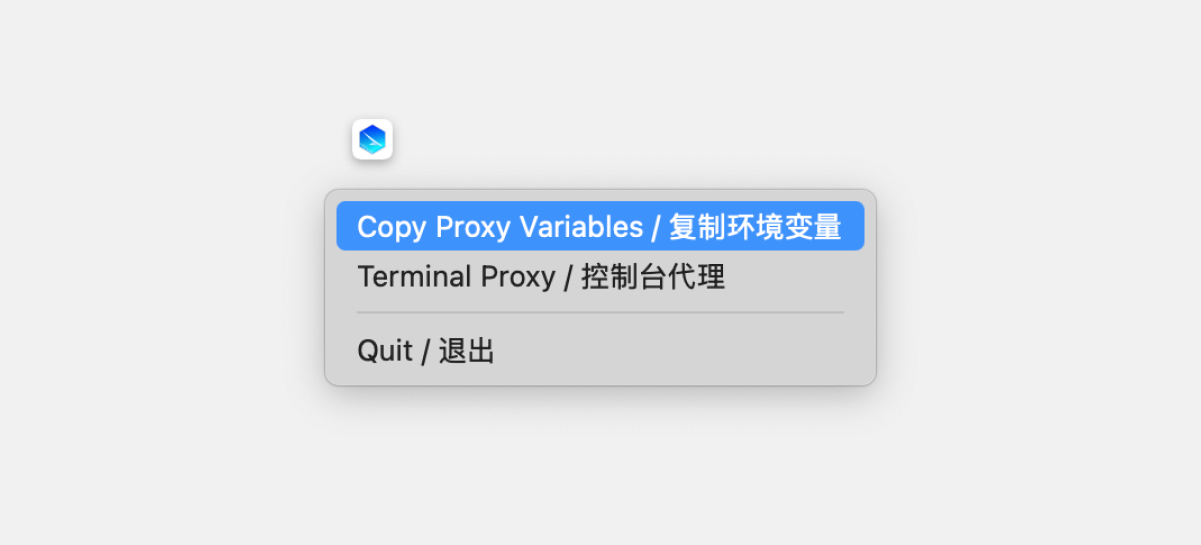
ViewTurbo provides a console proxy feature. If you only need it temporarily, click the tray item "Terminal Proxy / Console Proxy" and press Enter. The proxy will not be enabled the next time you restart your computer or reopen the terminal.
You can also make the console proxy persistent as follows:
If VS Code is installed, you can edit the file by running this command in the terminal:
code ~/.zshrc
Run echo $SHELL in the terminal to check your shell type.
- If it is /bin/zsh, run
vim ~/.zshrcin the terminal, pressato enter edit mode, and add: - If it is /usr/bin/bash, run
vim ~/.bashrc. The steps are the same as above, except the file name changes to~/.bashrc.
export http_proxy="http://127.0.0.1:15732"
export https_proxy="http://127.0.0.1:15732"
Then press :wq to save, run source ~/.zshrc to refresh the configuration, and run echo $http_proxy:
http://127.0.0.1:15732
If the output is as shown above, the console proxy is active.